Safehomes
Introduction
The default "Home" position is used for the landing point when landing is enabled or in an emergency situation. It is by default determined by the GPS location where the aircraft is armed.
For airplanes, information about the auto landing procedure can be found in the Fixed Wing Autoland page.
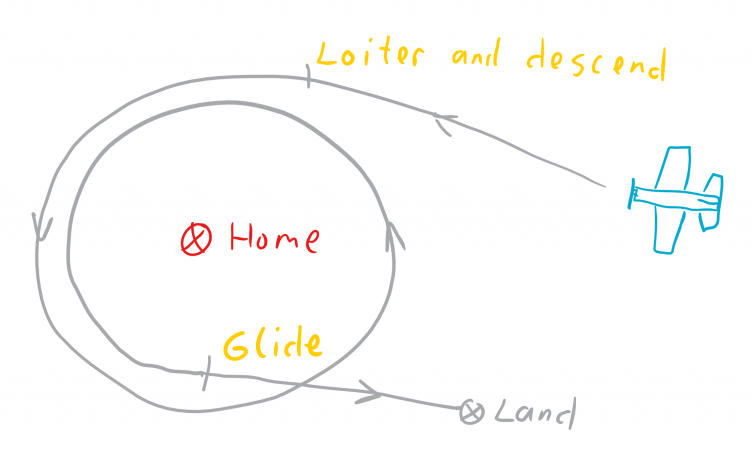
One potential risk when landing is that there might be buildings, trees and other obstacles in the way as the airplane circles lower toward the ground at the arming point. Most people don't go the middle of the field when arming their airplanes.
To solve this issue, the idea of Safehomes is available in INAV. Safehomes are alternative points that function as the new home point that INAV will use as the point for setting up for RTH and/or autoland.
Safehome
Safehomes are a list of GPS coordinates that identify safe landing points.
You can define up to 8 safehomes for different locations you fly at.
When the flight controller is armed, it checks the list of safehomes.
The nearest safehome that is enabled and within safehome_max_distance (default 200m) of the current arming position is identified.
The arming home location remains as home.
When RTH is activated, whether by radio failsafe, or using the RTH radio control mode, the safehome identified during arming will replace the home location. If RTH is turned off, either by regaining radio control or turning off the RTH radio control mode, the home location will return back to arming point.
If your safehome is not visible from your current location, use extra caution. A visual check of the safehome is recommend prior to flying. If the safehome is in use, you can use the OSD menu to disable safehome usage prior to your flight.
Create Safehomes
Safehomes can be created in the Mission Control Tab of INAV Configurator.
- In the upper left hand section of the map, click the house button to open the safehomes window for creating and editing safehome points.
This will open the Safehomes box in the left hand column.
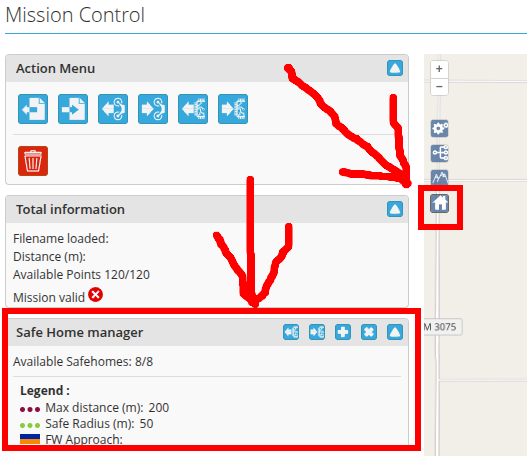
- Click the + icon to create a safehome point.
A green POI with the house icon will appear in the center of the map signifying the creation of a safehome point.
- You can click and move the point to your desired place on the map for fine tuning or alternatively input the GPS coordinates in the Safe Home Manager.
- Edit the Safehome to your liking.
The following options are available:
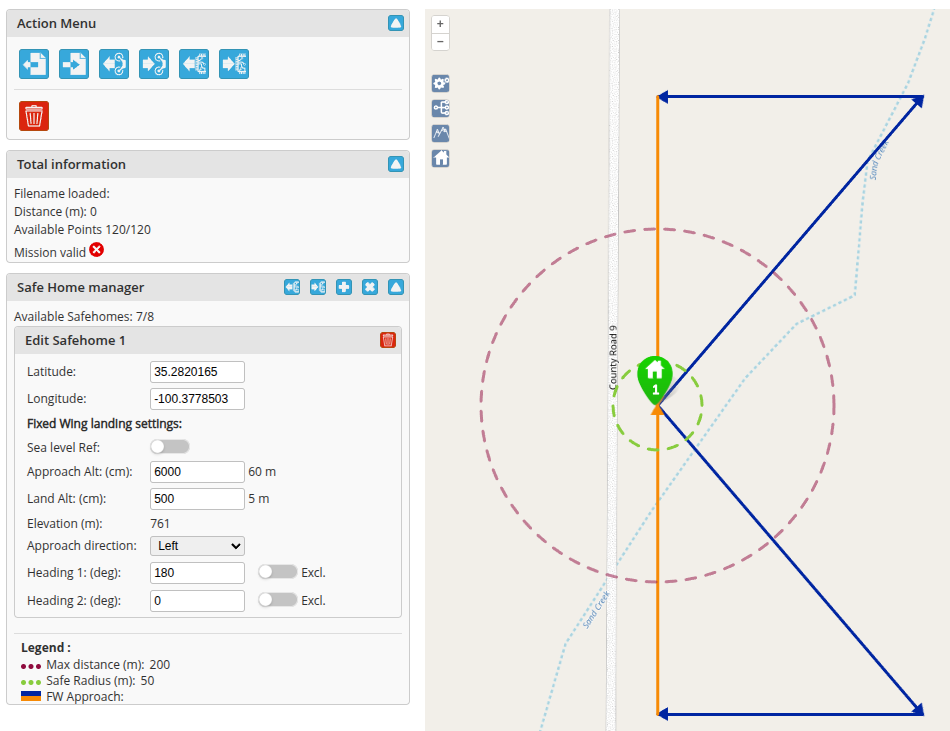
- Latitude: the latitude value
- Longitude: the longitude value
- Sea level reference: a switch to use MSL altitude instead of AGL
- Land alt: the altitude at which the flare procedure will be used during autoland. For more information, please see Autoland
- Elevation: a non-configurable value that shows the MSL elevation of the safehome POI
- Approach direction: change the direction the airplane turns during the base leg and the final approach. Left will make the airplane turn left (counterclockwise) and right will make it turn clockwise.
- Heading 1 and 2 (deg): is essentially a runway heading that tells the airplane how to approach the safehome point for autoland.
By default, both values are 0, which defaults to an arbitrary landing pattern based off the autoland procedure.
Change the heading to a value that's not 0 to define a direction the aircraft should land.
This essentially creates a runway heading with two approaches, the second being 180 deg of the defined heading that is used as an alternative approach to fly into a headwind.
Toggling the
Exlc.switch will remove the opposite landing heading and force the airplane to land only at that specified heading.
- Click the second icon with the arrow pointing towards the chip to save the safehome to the eeprom.
Configure Safehomes
The quickest and easiest way to configure safehome behavior is through the RTH settings in the Advanced Tuning Tab. Safehomes can also be configured and edited via CLI. Both procedures are described in this section.
INAV Configurator
Please see the above section on configuring safehomes through INAV Configurator.
CLI
The safehome operating mode is set using safehome_usage_mode.
If OFF, safehomes will not be used.
If RTH, the safehome will replace the arming location when RTH is activated, either manually or because of RX failsafe.
If RTH_FS, the safehome will only be used for RX failsafe.
This option can also be changed using the OSD menu.
If you frequently use RTH to return back to the arming point, you may not want the aircraft to fly to the safehome.
Let it do this at least once to confirm safehomes is working as expected.
Afterward, set safehome_usage_mode = RTH_FS and the safehome will only be used for failsafe.
When using mode RTH_FS, you should confirm that your radio's failsafe configuration triggers the INAV failsafe mode. With many receivers, you have the ability to specify what signal to output during failsafe conditions.
When you are choosing safehome locations, ensure that the location is clear of obstructions for a radius more than 50m (nav_fw_loiter_radius).
As the plane descends, the circles aren't always symmetrical, as wind direction could result in some wider or tighter turns.
Also, the direction and length of the final landing stage is also unknown.
You want to choose a point that has provides a margin for variation and the final landing.
Safehome Usage
OSD Message when Armed
When the aircraft is armed, the OSD briefly shows ARMED and the current GPS position and current date and time.
If a safehome is selected, an additional message appears:
     H - DIST -> SAFEHOME n  <- New message
                                n   is the Safehome index (0-7)
            ARMED               DIST is the distance from
        GPS LATITUDE                 your current position to this safehome
        GPS LONGITUDE
        GPS PLUS CODE

         CURRENT DATE
         CURRENT TIME
The GPS details are those of the arming location, not the safehome. To draw your attention to a safehome being selected, the message flashes and stays visible longer.
If a safehome was found, but ``safehome_usage_modeisOFF, the message SAFEHOME FOUND; MODE OFF``` will appear.
OSD Message during RTH
If RTH is in progress to a safehome, the message "DIVERTING TO SAFEHOME" will be displayed.
CLI command safehome to manage safehomes
safehome - List all safehomes
safehome reset - Clears all safehomes.
safehome <n> <enabled> <lat> <lon> - Set the parameters of a safehome with index <n>.
Parameters:
<enabled>- 0 is disabled, 1 is enabled.<lat>- Latitude (WGS84), in degrees * 1E7 (for example 123456789 means 12.3456789).<lon>- Longitude.
Note that coordinates from Google Maps only have five or six decimals, so you need to pad zero decimals until you have seven before removing the decimal period to set the correct safehome location. For example, coordinates 54.353319 -4.517927 obtained from Google Maps need to be entered as 543533190 -45179270, coordinates 43.54648 -7.86545 as 435464800 -78654500 and 51.309842 -0.095651 as 513098420 -00956510.
Safehomes are saved along with your regular settings and will appear in diff and dump output. Use save to save any changes, as with other settings.
safehome example
# safehome
safehome 0 1 543533190 -45179270
safehome 1 1 435464800 -78654500
safehome 2 1 513098420 -00956510
safehome 3 0 0 0
safehome 4 0 0 0
safehome 5 0 0 0
safehome 6 0 0 0
safehome 7 0 0 0