Blackbox
Introduction
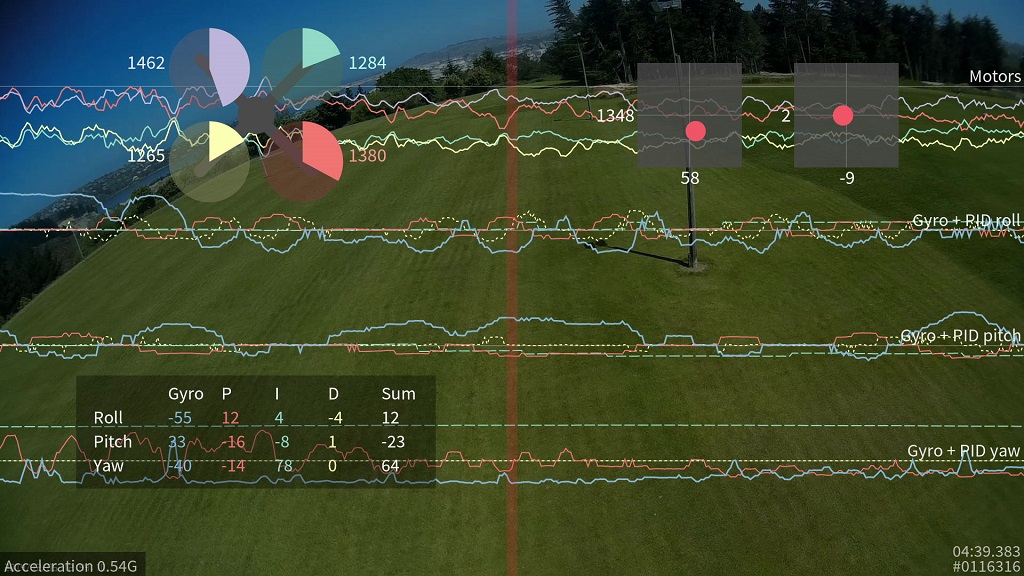
This feature transmits your flight data information on every control loop iteration over a serial port to an external logging device to be recorded, SD card, or to a dataflash chip which is present on some flight controllers.
After your flight, you can view the resulting logs using the interactive log viewer:
https://github.com/iNavFlight/blackbox-log-viewer
You can also use the blackbox_decode tool to turn the logs into CSV files for analysis, or render your flight log as a
video using the blackbox_render tool. Those tools can be found in this repository:
https://github.com/iNavFlight/blackbox-tools
Logged data
The blackbox records flight data on every iteration of the flight control loop. It records the current time in microseconds, P, I and D corrections for each axis, your RC command stick positions (after applying expo curves), gyroscope data, accelerometer data (after your configured low-pass filtering), barometer and rangefinder readings, 3-axis magnetometer readings, raw VBAT and current measurements, RSSI, and the command being sent to each motor speed controller. This is all stored without any approximation or loss of precision, so even quite subtle problems should be detectable from the fight data log.
GPS data is logged whenever new GPS data is available. Although the CSV decoder will decode this data, the video renderer does not yet show any of the GPS information (this will be added later).
Supported Configurations
The maximum data rate that can be recorded to the flight log is fairly restricted, so anything that increases the load can cause the flight log to drop frames and contain errors.
The Blackbox is typically used on tricopters and quadcopters. Although it will work on hexacopters and octocopters, because these craft have more motors to record, they must transmit more data to the flight log. This can increase the number of dropped frames. Although the browser-based log viewer supports hexacopters and octocopters, the command-line blackbox_render tool currently only supports tri- and quadcopters.
INAV's looptime setting decides how frequently an update is saved to the flight log. The default looptime on INAV is 2000us. If you're using a looptime smaller than about 2400, you may experience some dropped frames due to the high required data rate. In that case you will need to reduce the sampling rate in the Blackbox settings, or increase your logger's baudrate to 250000. See the later section on configuring the Blackbox feature for details.
Setting up logging
First, you must enable the Blackbox feature. In the INAV Configurator enter the Configuration tab, tick the "BLACKBOX" feature at the bottom of the page, and click "Save and reboot"
Now you must decide which device to store your flight logs on. You can either transmit the log data over a serial port to an external logging device like the OpenLog serial data logger to be recorded to a microSDHC card, or if you have a compatible flight controller you can store the logs on the onboard dataflash storage instead.
OpenLog Serial Data Logger
The OpenLog is a small logging device which attaches to your flight controller using a serial port and logs your flights to a MicroSD card.
The OpenLog ships from SparkFun with standard "OpenLog 3" firmware installed. Although this original OpenLog firmware will work with the Blackbox, in order to reduce the number of dropped frames it should be reflashed with the higher performance OpenLog Blackbox firmware. The special Blackbox variant of the OpenLog firmware also ensures that the OpenLog is using INAV compatible settings, and defaults to 115200 baud.
You can find the Blackbox version of the OpenLog firmware here, along with instructions for installing it onto your OpenLog.
microSDHC
Your choice of microSDHC card is very important to the performance of the system. The OpenLog relies on being able to make many small writes to the card with minimal delay, which not every card is good at. A faster SD-card speed rating is not a guarantee of better performance.
microSDHC cards known to have poor performance
- Generic 4GB Class 4 microSDHC card - the rate of missing frames is about 1%, and is concentrated around the most interesting parts of the log!
- Sandisk Ultra 32GB (unlike the smaller 16GB version, this version has poor write latency)
microSDHC cards known to have good performance
- Transcend 16GB Class 10 UHS-I microSDHC (typical error rate < 0.1%)
- Sandisk Extreme 16GB Class 10 UHS-I microSDHC (typical error rate < 0.1%)
- Sandisk Ultra 16GB (it performs only half as well as the Extreme in theory, but still very good)
You should format any card you use with the SD Association's special formatting tool , as it will give the OpenLog the best chance of writing at high speed. You must format it with either FAT, or with FAT32 (recommended).
Choosing a serial port for the OpenLog
First, tell the Blackbox to log using a serial port (rather than to an onboard dataflash chip). Go to the Configurator's CLI tab, enter set blackbox_device=SERIAL to switch logging to serial, and save.
You need to let INAV know which of your serial ports you connect your OpenLog to (i.e. the Blackbox port), which you can do on the Configurator's Ports tab.
You should use a hardware serial port. SoftSerial ports can be used for the Blackbox. However, because they are limited to 19200 baud, your logging rate will need to be severely reduced to compensate. Therefore the use of SoftSerial is not recommended.
When using a hardware serial port, Blackbox should be set to at least 115200 baud on that port. When using fast looptimes (<2500), a baud rate of 250000 should be used instead in order to reduce dropped frames.
The serial port used for Blackbox cannot be shared with any other function (e.g. GPS, telemetry) except the MSP protocol. If MSP is used on the same port as Blackbox, then MSP will be active when the board is disarmed, and Blackbox will be active when the board is armed. This will mean that you can't use the Configurator or any other function that requires MSP, such as an OSD or a Bluetooth wireless configuration app, while the board is armed.
Connect the "TX" pin of the serial port you've chosen to the OpenLog's "RXI" pin. Don't connect the serial port's RX pin to the OpenLog as this will cause the OpenLog to interfere with any shared functions on the serial port while disarmed.
The key criteria to choose a serial port are:
- Should be a hardware serial port rather than SoftSerial.
- Cannot be shared with any other function (GPS, telemetry) except MSP.
- If MSP is used on the same UART, MSP will stop working when the board is armed.
OpenLog Configuration
Power up the OpenLog with a microSD card inside, wait 10 seconds or so, then power it down and plug the microSD card into your computer. You should find a "CONFIG.TXT" file on the card, open it up in a text editor. You should see the baud rate that the OpenLog has been configured for (usually 115200 or 9600 from the factory). Set the baud rate to match the rate you entered for the Blackbox in the Configurator's Port tab (typically 115200 or 250000).
Save the file and put the card back into your OpenLog, it will use those settings from now on.
If your OpenLog didn't write a CONFIG.TXT file, create a CONFIG.TXT file with these contents and store it in the root of the MicroSD card:
115200
baud
If you are using the original OpenLog firmware, use this configuration instead:
115200,26,0,0,1,0,1
baud,escape,esc#,mode,verb,echo,ignoreRX
OpenLog protection
The OpenLog can be wrapped in black electrical tape or heat-shrink in order to insulate it from conductive frames (like carbon fibre), but this makes its status LEDs impossible to see. I recommend wrapping it with some clear heatshrink tubing instead.
Onboard dataflash storage
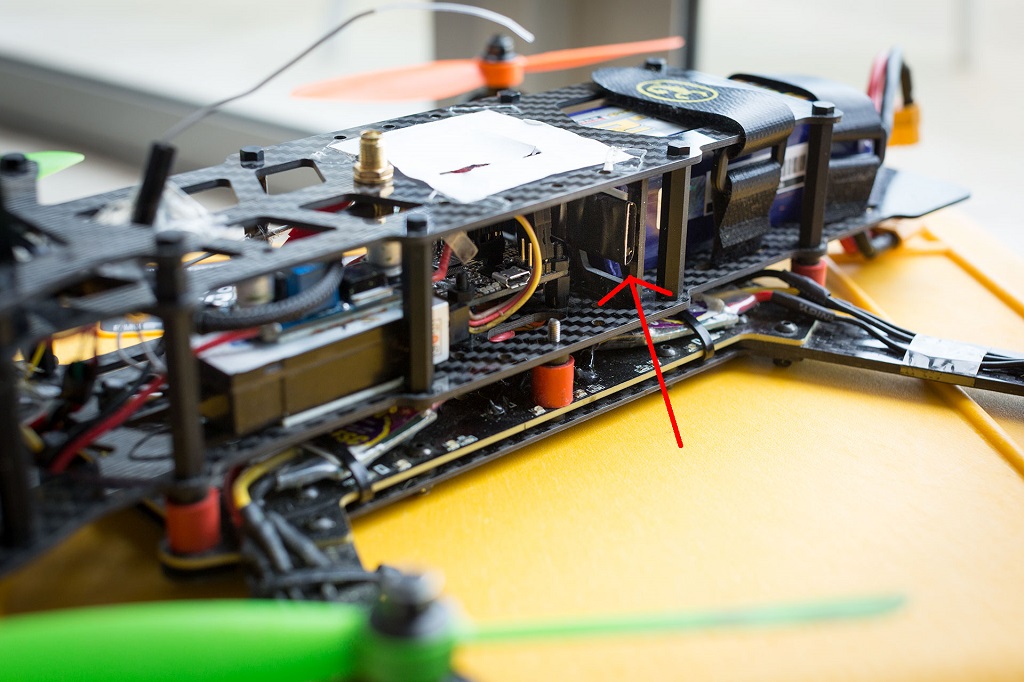
Some flight controllers have an onboard SPI NOR dataflash chip which can be used to store flight logs instead of using an OpenLog.
These chips are also supported:
- Micron/ST M25P16 - 16 Mbit / 2 MByte
- Micron N25Q064 - 64 Mbit / 8 MByte
- Winbond W25Q64 - 64 Mbit / 8 MByte
- Micron N25Q0128 - 128 Mbit / 16 MByte
- Winbond W25Q128 - 128 Mbit / 16 MByte
- Puya PY25Q128HA - 128 Mbit / 16 MByte
- Winbond W25N01 - 1 Gbit / 128 MByte
- Winbond W25N02 - 2 Gbit / 256 MByte
Enable recording to dataflash
On the Configurator's CLI tab, you must enter set blackbox_device=SPIFLASH to switch to logging to an onboard dataflash chip, then save.
Configuring the Blackbox
The Blackbox currently provides two settings (blackbox_rate_num and blackbox_rate_denom) that allow you to control the rate at which data is logged. These two together form a fraction (blackbox_rate_num / blackbox_rate_denom) which decides what portion of the flight controller's control loop iterations should be logged. The default is 1/1 which logs every iteration.
If you're using a slower MicroSD card, you may need to reduce your logging rate to reduce the number of corrupted logged frames that blackbox_decode complains about. A rate of 1/2 is likely to work for most craft.
You can change the logging rate settings by entering the CLI tab in the INAV Configurator and using the set command, like so:
set blackbox_rate_num = 1
set blackbox_rate_denom = 2
The data rate for my quadcopter using a looptime of 2400 and a rate of 1/1 is about 10.25kB/s. This allows about 18 days of flight logs to fit on my OpenLog's 16GB MicroSD card, which ought to be enough for anybody :).
If you are logging using SoftSerial, you will almost certainly need to reduce your logging rate to 1/32. Even at that logging rate, looptimes faster than about 1000 cannot be successfully logged.
If you're logging to an onboard dataflash chip instead of an OpenLog, be aware that the 2MB of storage space it offers is pretty small. At the default 1/1 logging rate, and a 2400 looptime, this is only enough for about 3 minutes of flight. This could be long enough for you to investigate some flying problem with your craft, but you may want to reduce the logging rate in order to extend your recording time.
To maximize your recording time, you could drop the rate all the way down to 1/32 which would result in a logging rate of about 10-20Hz and about 650 bytes/second of data. At that logging rate, a 2MB dataflash chip can store around 50 minutes of flight data, though the level of detail is severely reduced and you could not diagnose flight problems like vibration or PID setting issues.
The CLI command blackbox allows setting which Blackbox fields are recorded to conserve space and bandwidth. Possible fields are:
NAV_ACC- Navigation accelerometer readoutsNAV_PID- Navigation PID debugNAV_POS- Current and target position and altitudeMAG- Magnetometer raw valuesACC- Accelerometer raw valuesATTI- Attitude as computed by INAV position estimatorRC_DATA- RC channels 1-4 as returned by the radio receiverRC_COMMAND- RC_DATA converted to [-500:500] scale (for A,E,R) with expo and deadbandMOTORS- motor outputGYRO_RAW- Raw Gyro dataPEAKS_R- Roll axis noise peakPEAKS_P- Pitch axis noise peakPEAKS_Y- Yaw axis noise peakSERVOS- Servo outputs (for planes, tris, etc.)
Usage:
blackboxcurrently enabled Blackbox fieldsblackbox listall available fieldsblackbox -MOTORSdisable MOTORS loggingblackbox MOTORSenable MOTORS logging
Debug Mode Logging
In addition to the standard blackbox fields above, INAV supports logging debug values for troubleshooting and analysis via the debug_mode setting. When a debug mode is active, it populates 8 debug values (debug[0] through debug[7]) with mode-specific data that gets logged to the blackbox.
Available debug modes include:
FLOW_RAW- Optical flow sensor raw data (useful for sensor alignment)LANDING- Landing mode debuggingPOS_EST- Position estimation debuggingGPS- GPS debuggingALTITUDE- Altitude estimation debugging- And 20+ other modes for specific subsystems
To use debug mode logging:
set debug_mode = FLOW_RAW    # Enable a specific debug mode
set debug_mode = NONE        # Disable debug mode (default)
You can view current debug values in the CLI with the debug command, or display them in real-time on your OSD using the OSD_DEBUG element.
For technical details on debug logging and blackbox internals, see the Blackbox Internals documentation.
Usage
The Blackbox starts recording data as soon as you arm your craft, and stops when you disarm.
If your craft has a buzzer attached, you can use INAV's arming beep to synchronize your Blackbox log with your flight video. INAV's arming beep is a "long, short" pattern. The beginning of the first long beep will be shown as a blue line in the flight data log, which you can sync against your recorded audio track.
You should wait a few seconds after disarming your craft to allow the Blackbox to finish saving its data.
Usage - OpenLog
Each time the OpenLog is power-cycled, it begins a fresh new log file. If you arm and disarm several times without cycling the power (recording several flights), those logs will be combined together into one file. The command line tools will ask you to pick which one of these flights you want to display/decode.
Don't insert or remove the SD card while the OpenLog is powered up.
Usage - Dataflash chip
After your flights, you can use the INAV Configurator to download the contents of the dataflash to your computer. Go to the "dataflash" tab and click the "save flash to file..." button. Saving the log can take 2 or 3 minutes.
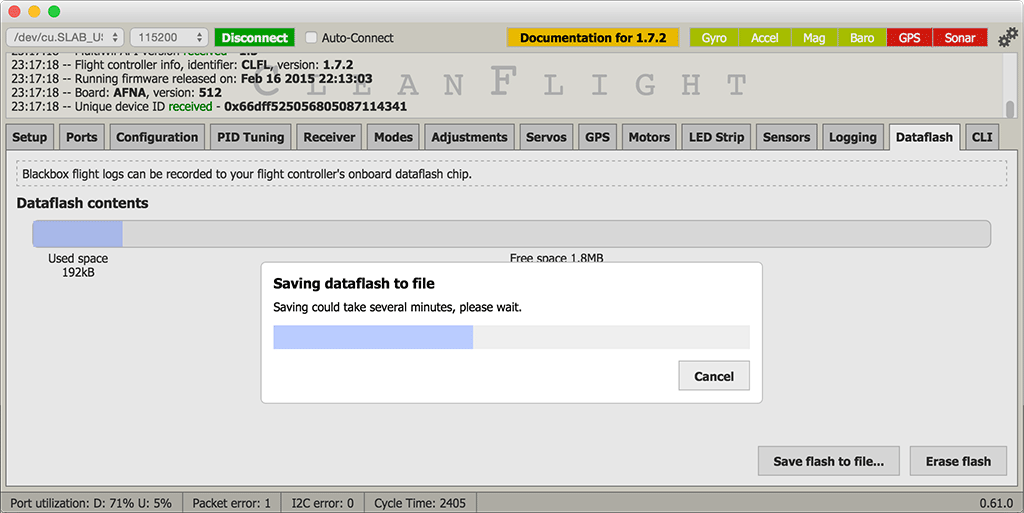
After downloading the log, be sure to erase the chip to make it ready for reuse by clicking the "erase flash" button.
If you try to start recording a new flight when the dataflash is already full, Blackbox logging will be disabled and nothing will be recorded.
Usage - Logging switch
If you're recording to an onboard flash chip, you probably want to disable Blackbox recording when not required in order to save storage space. To do this, you can add a Blackbox flight mode to one of your AUX channels on the Configurator's modes tab. Once you've added a mode, Blackbox will only log flight data when the mode is active.
A log header will always be recorded at arming time, even if logging is paused. You can freely pause and resume logging while in flight.
Viewing recorded logs
After your flights, you'll have a series of flight log files with a .TXT extension.
You can view these .TXT flight log files interactively using your web browser with the INAV Blackbox Explorer:
https://github.com/iNavFlight/blackbox-log-viewer
This allows you to scroll around a graphed version of your log and examine your log in detail. You can also export a video of your log to share it with others!
You can decode your logs with the blackbox_decode tool to create CSV (comma-separated values) files for analysis, or render them into a series of PNG frames with blackbox_render tool, which you could then convert into a video using another software package.
You'll find those tools along with instructions for using them in this repository:
https://github.com/iNavFlight/blackbox-tools
Blackbox Variables
Blackbox is a valuable tool for analyzing the flight dynamics of our airborne vehicles and as such it can be useful for troubleshooting and debugging purposes.
In INAV we use a set of specific variables, each variable may contain multiple arrays, for example - navPos[0-2].
navPos, navVel, navTgtPos and navTgtVel each hold arrays [0-2], which represent distances due North [0], due East [1] and straight Up [2], all relative to the "point of origin". North and East are fused from accelerometer and GPS data, while Up is fused from accelerometer + barometer for multicopters and accelerometer + gps for airplanes if no barometer is available. Read the Inertial position estimator|Inertial-position-estimator-(INAV) section in the [[Developer info]] page for detailed explanation.
"Point of origin" might be different from "Home". "Home" is defined as position at the time of arming. While "Point of origin" is recorded after a valid GPS fix is acquired.
For further information about the coordinate system used please read the Coordinate systems|Coordinate-systems section on the [[Developer info]] page.
INAV Variables
Variables listed below with a short description of each:
-
navMode (navState in newer code): current mode of operation from INAV's point of view. Might be different from flight mode. Meaning vary by version, but navMode=0 and navState=1 means idle.
-
navFlags: binary flags of INAV internal state: new data availability for altitude, position and heading, validity of altitude, surface distance and position, flags to indicate if pilot is adjusting altitude and position via rc input.
-
navTgtPos: represents the desired position as used/calculated by INAV. When you are in PH, navTgtPos will be set to hold position coordinates.
-
navPos: array of latest NEU coordinates as provided by inertial estimator. Will be slightly different from GPS/baro readings for 99% of time. Units - cm.
-
navVel: same as navPos, but for estimated velocity. Units - cm/s
-
navTgtVel: represents the desired velocity as used/calculated by INAV. When you are in PH, navTgtVel will be set to calculated desired velocity to reach the target position.
-
navDebug: as the name suggests it is used for debugging. Meaning of these values differ all the time depending on what part of the code is currently being debugged.
Blackbox can log data either via serial port or into internal dataflash. In order to log the data into the internal flash at the moment is possible via CLI: set blackbox_device = SPIFLASH # instead of SERIAL set blackbox_rate_num = 1 set blackbox_rate_denom = 2 This will make it work and store every second value.
INAV Logging Intervals
Blackbox logs several types of frames - flight behaviour is written using I- and P-frames. I-frames are fairly big and contain absolute values, P-frames are delta-encoded to save space. Blackbox denominator only reduces P-frame rate, the I-frame rate is constant.
Originally I-frames were logged every 32 iterations, P-frame is logged every blackbox_rate_denom after I-frame. This doesn't give you exactly 1 / blackbox_rate_denom rate, i.e. for 1/16 - 1/31 rates it's going to be c. 16 iterations between frames on average.
For INAV 1.6 and later, the I-frame interval is set dynamically at 1/32, 1/64, 1/128 and 1/256 based on the blackbox_rate_denom chosen.
For example, if a blackbox_rate_denom of 50 is used, INav will select 64 as the I-frame interval, meaning c. 1/32 actual logging rate.
Due to the complexity of the tasks being performed in later INAV releases. e.g. 2K_looptime, lower Dshot values, Control Profiles, Programming framework, OSD etc. It is advisable to run blackbox_rate_denom at the lowest value (32 - 3%) to start with. Otherwise higher rates may cause breaks in the log, or inability to record any log data. This will vary based on the hardware logging type (FLASH, SDCARD, SDIO)
Some fields that are logged, are not yet accessible with Blackbox Explorer, particularly navigation related.. Other options:
- blackbox_decode Decode to CSV file
- flightlog2kml, fl2xui. Decode to KML (for Google Earth).
- mwptools. Interactive log replay, inter-alia.
Explanation of all the parameters
| Name of field in txt file | Name in Blackbox Log Viewer | Explanation | . | .. |
|---|---|---|---|---|
| loopIteration | not used | counter from main loop | ||
| time (us) | x-axis of diagram | real time in microseconds | ||
| axisRate[0] | gyros[roll] (.. deg/s) | rotation rate | roll | deg/sec |
| axisRate[1] | gyros[pitch] (.. deg/s) | rotation rate | pitch | deg/sec |
| axisRate[2] | gyros[yaw] (.. deg/s) | rotation rate | yaw | deg/sec |
| axisP[0] | PID_P[roll] | PID controller | roll | P |
| axisP[1] | PID_P[pitch] | PID controller | pitch | P |
| axisP[2] | PID_P[yaw] | PID controller | yaw | P |
| axisI[0] | PID_I[roll] | PID controller | roll | I |
| axisI[1] | PID_I[pitch] | PID controller | pitch | I |
| axisI[2] | PID_I[yaw] | PID controller | yaw | I |
| axisD[0] | PID_D[roll] | PID controller | roll | D |
| axisD[1] | PID_D[pitch] | PID controller | pitch | D |
| axisD[2] | PID_D[yaw] | PID controller | yaw | D |
| mcPosAxisP[0] | mcPosAxisP[0] | multicopter position | north | cm |
| mcPosAxisP[1] | mcPosAxisP[1] | multicopter position | east | cm |
| mcPosAxisP[2] | mcPosAxisP[2] | multicopter position | vertical | cm |
| mcVelAxisP[0] | mcVelAxisP[0] | multicopter velocity | north | cm/sec |
| mcVelAxisP[1] | mcVelAxisP[1] | multicopter velocity | east | cm/sec |
| mcVelAxisP[2] | mcVelAxisP[2] | multicopter velocity | vertical | cm/sec |
| mcVelAxisI[0] | mcVelAxisI[0] | multicopter velocity | north | cm/sec |
| mcVelAxisI[1] | mcVelAxisI[1] | multicopter velocity | east | cm/sec |
| mcVelAxisI[2] | mcVelAxisI[2] | multicopter velocity | vertical | cm/sec |
| mcVelAxisD[0] | mcVelAxisD[0] | multicopter velocity | north | cm/sec |
| mcVelAxisD[1] | mcVelAxisD[1] | multicopter velocity | east | cm/sec |
| mcVelAxisD[2] | mcVelAxisD[2] | multicopter velocity | vertical | cm/sec |
| mcVelAxisOut[0] | mcVelAxisOut[0] | multicopter velocity | north | cm/sec |
| mcVelAxisOut[1] | mcVelAxisOut[1] | multicopter velocity | east | cm/sec |
| mcVelAxisOut[2] | mcVelAxisOut[2] | multicopter velocity | vertical | cm/sec |
| mcSurfaceP | mcSurfaceP | multicopter surface mode | P | |
| mcSurfaceI | mcSurfaceI | multicopter surface mode | I | |
| mcSurfaceD | mcSurfaceD | multicopter surface mode | D | |
| mcSurfaceOut | mcSurfaceOut | multicopter surface mode | ||
| fwAltP | fwAltP | fixedwing altitude position | P | |
| fwAltI | fwAltI | fixedwing altitude position | I | |
| fwAltD | fwAltD | fixedwing altitude position | D | |
| fwAltOut | fwAltOut | fixedwing altitude position output | ||
| fwPosP | fwPosP | fixedwing horizontal position | P | |
| fwPosI | fwPosI | fixedwing horizontal position | I | |
| fwPosD | fwPosD | fixedwing horizontal position | D | |
| fwPosOut | fwPosOut | fixedwing horizontal position output | ||
| rcData[0] | rcData[0] | received rc signal | roll | 1000-2000 µs |
| rcData[1] | rcData[1] | received rc signal | pitch | 1000-2000 µs |
| rcData[2] | rcData[2] | received rc signal | yaw | 1000-2000 µs |
| rcData[3] | rcData[3] | received rc signal | throttle | 1000-2000 µs |
| rcCommand[0] | rcCommand[0] | stabilization controller command | roll | 1000-2000 µs |
| rcCommand[1] | rcCommand[1] | stabilization controller command | pitch | 1000-2000 µs |
| rcCommand[2] | rcCommand[2] | stabilization controller command | yaw | 1000-2000 µs |
| rcCommand[3] | rcCommand[3] | stabilization controller command | throttle | 1000-2000 µs |
| vbat | vbat | voltage of flight battery | volts | |
| sagCompensatedVBat | load compensated battery voltage | volts | ||
| powerSupplyImpedance | flight battery internal resistance | mΩ | ||
| amperage | system current drain | amps | ||
| magADC[0] | mag[x] | compass | north | |
| magADC[1] | mag[y] | compass | east | |
| magADC[2] | mag[z] | compass | vertical | |
| BaroAlt | Baro | altitude(barometric) | m | |
| gyroADC[0] | gyro[0] | rotation(gyro) | roll | deg/sec |
| gyroADC[1] | gyro[1] | rotation(gyro) | pitch | deg/sec |
| gyroADC[2] | gyro[2] | rotation(gyro) | yaw | deg/sec |
| gyroRaw[0] | gyroRaw[0] | rotation(gyro before filtering) | roll | deg/sec |
| gyroRaw[1] | gyroRaw[1] | rotation(gyro before filtering) | pitch | deg/sec |
| gyroRaw[2] | gyroRaw[2] | rotation(gyro before filtering) | yaw | deg/sec |
| accSmooth[0] | acc[x] | acceleration | north | ADC * normalised 1g |
| accSmooth[1] | acc[y] | acceleration | east | ADC * normalised 1g |
| accSmooth[2] | acc[z] | acceleration | vertical | ADC * normalised 1g |
| accVib | accVib | accelerometer vibration level | frequency | Hz |
| attitude[0] | attitude[0] | heading | roll | 0-3600 deg/10 |
| attitude[1] | attitude[1] | heading | pitch | 0-3600 deg/10 |
| attitude[2] | attitude[2] | heading | yaw | 0-3600 deg/10 |
| debug[0-7] | debug[0-7] | CLI debug_mode | 0 - 7 | |
| motor[0] | motor[0] | output to motor ESC | 0 | 1000-2000 µs |
| motor[1] | motor[1] | output to motor ESC | 1 | 1000-2000 µs |
| motor[2] | motor[2] | output to motor ESC | 2 | 1000-2000 µs |
| motor[3] | motor[3] | output to motor ESC | 3 | 1000-2000 µs |
| navState | navigation control mode state | |||
| navFlags | navigation data trusted | |||
| navPos[0] | navPos[0] | position of vehicle | north | cm |
| navPos[1] | navPos[1] | position of vehicle | east | cm |
| navPos[2] | navPos[2] | position of vehicle | vertical | cm |
| navVel[0] | navVel[0] | velocity of vehicle | north | cm/s |
| navVel[1] | navVel[1] | velocity of vehicle | east | cm/s |
| navVel[2] | navVel[2] | velocity of vehicle | vertical | cm/s |
| navAcc[0] | navAcc[0] | acceleration of vehicle | north | cm/s/s |
| navAcc[1] | navAcc[1] | acceleration of vehicle | east | cm/s/s |
| navAcc[2] | navAcc[2] | acceleration of vehicle | vertical | cm/s/s |
| navTgtVel[0] | navTgtVel[0] | target value: velocity | north | cm/s |
| navTgtVel[1] | navTgtVel[1] | target value: velocity | east | cm/s |
| navTgtVel[2] | navTgtVel[2] | target value: velocity | vertical | cm/s |
| navTgtPos[0] | navTgtPos[0] | target value: position | north | cm |
| navTgtPos[1] | navTgtPos[1] | target value: position | east | cm |
| navTgtPos[2] | navTgtPos[2] | target value: position | vertical | cm |
| navTgtHdg | active heading computation | horizontal | ||
| navSurf[0] | navSurf[0] | requires surface mode | ||
| flightModeFlags (flags) | active modes | |||
| stateFlags (flags) | active control states | |||
| failsafePhase (flags) | failsafePhase | idle/active (RTH/Land) | boolean | 0/1 |
| rxSignalReceived | active RX link | boolean | 0/1 | |
| rxFlightChannelsValid | ||||
| hwHealthStatus | active sensor communication | |||
| waypoint | activeWPNumber | current flight waypoint | decimal | |
| rpm | escRPM | ESC telemetry motor revolutions/min | RPM | |
| escTemperature | escTemperature | ESC telemetry temperature | decidegrees C | |
| IMUTemperature | IMUTemperature | Gyro/Acc device temperature | degrees C | |
| baroTemperature | baroTemperature | barometer device temperature | degrees C | |
| sensTemp | Sens 0-7 Temp | user dedicated temperature sensors | 0-7 | degrees C |
| windHeading | direction | degrees | ||
| windVelocity | speed | m/s | ||
| wind[0] | windVelocity | wind X axis velocity | north | m/s |
| wind[1] | windVelocity | wind Y axis velocity | east | m/s |
| wind[2] | windVelocity | wind Z axis velocity | vertical | m/s |
| AirSpeed | AirSpeed | Pitot or Virtual | cm/s | |
| GPS_home[0] | latitude | degrees | ||
| GPS_home[1] | longitude | degrees | ||
| GPS_fixType | positional lock accuracy | None - 2D - 3D | ||
| GPS_numSat | number of satellites acquired | decimal | ||
| GPS_coord[0] | latitude | deg : min : sec | ||
| GPS_coord[1] | longitude | deg : min : sec | ||
| GPS_altitude | GPS_altitude | m | ||
| GPS_speed | velocity | cm/s | ||
| GPS ground course | ground course heading | degrees | ||
| GPS_hdop | quality of GPS fix | 10 down to 0.5 | ||
| navEPH | Std deviation horizontal position error | meters | ||
| navEPV | Std deviation of vertical position error | meters | ||
| GPS_velned[0] | CoG X axis velocity | north | m/s | |
| GPS_velned[1] | CoG Y axis velocity | east | m/s | |
| GPS_velned[2] | CoG Z axis velocity | down | m/s |