ADS-B (Air Traffic Awareness)
Automatic Dependent Surveillance–Broadcast (ADS-B) is an air traffic surveillance technology in which aircraft periodically broadcast their position, altitude, heading and speed. It lets air traffic controllers and other pilots track aircraft accurately without conventional radar.
INAV can receive this traffic from an ADS-B receiver connected to the flight controller and show the most relevant nearby aircraft in the OSD, so you get an early warning when manned traffic is approaching your flying area.
1. What ADS-B Does in INAV
The ADS-B receiver listens to broadcasts from surrounding aircraft and forwards them to the flight controller as MAVLink ADSB_VEHICLE messages. INAV keeps a small list of tracked aircraft, calculates their distance, bearing and altitude difference relative to your UAV, and displays the closest (or most threatening) one in the OSD.
The feature is informational only — INAV does not change its flight path or behaviour based on ADS-B traffic. It is up to you, the pilot, to react.
Two OSD elements are involved:
- ADSB Info — shows the status of the ADS-B subsystem and the number of aircraft currently tracked.
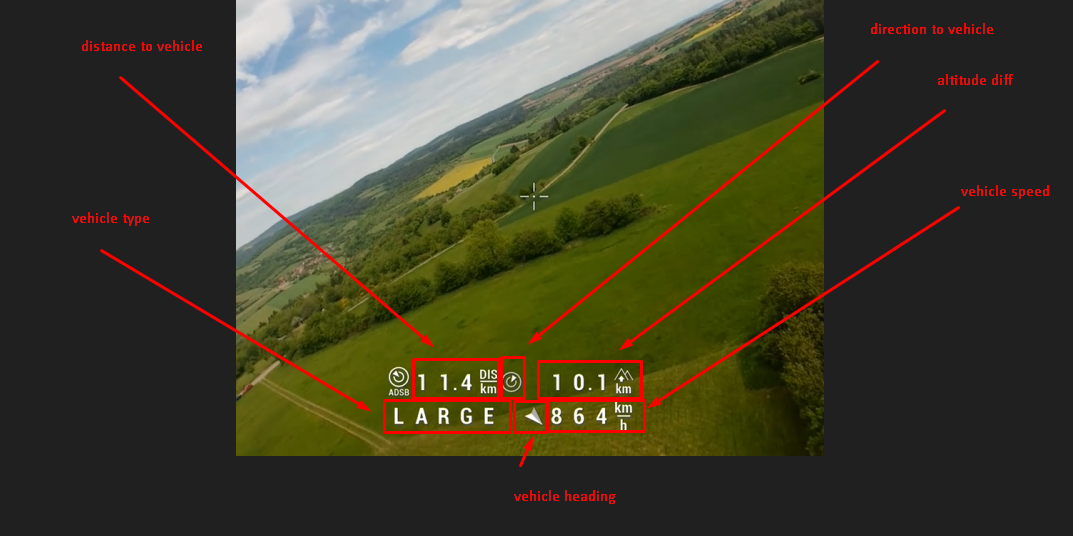
- ADSB Warning — shows the selected aircraft (distance, direction, altitude difference and optionally type, heading and speed). It appears only when an aircraft is inside the configured warning zone, and blinks when the aircraft is inside the alert zone or is predicted to enter it.
How the Traffic List Works
A few facts about the internal traffic list help explain what you see on screen:
- INAV tracks up to 5 aircraft at a time. When the list is full and a new aircraft arrives, it replaces the farthest tracked aircraft only if the new one is closer.
- Aircraft farther than 64 km away are dropped from the list.
- An aircraft that has not been heard from for 10 seconds is removed.
- Messages without valid coordinates and altitude are ignored.
- Distance and bearing can only be calculated once your own position is known: INAV needs a GPS fix (a GPS fix estimation also counts) with at least 5 satellites. Until then, aircraft are stored but not evaluated, and the warning element stays empty.
2. Supported Hardware
Any ADS-B receiver that can output the MAVLink ADSB_VEHICLE message over a serial port is supported. The following devices are known to work:
| Receiver | Status | Notes |
|---|---|---|
| TT-SC1 (Aerobits) | Tested | Compact 1090 MHz receiver module. A power/breakout PCB for the TT-SC1-B module is available at oshwlab.com/error414/adsb-power-board. |
| ADSBee 1090 | Tested | Configured through AT+ commands over USB. |
| SoftRF (Nano Edition) | Tested | MAVLink version 1 only, 57600 baud. Minimal support — see SoftRF. |
| PINGRX (uAvionix) | Not tested | Should work as it outputs MAVLink ADSB_VEHICLE. |
| PicoAdsb | Tested |
3. Setup
3.1 Connect the Receiver and Configure the Port
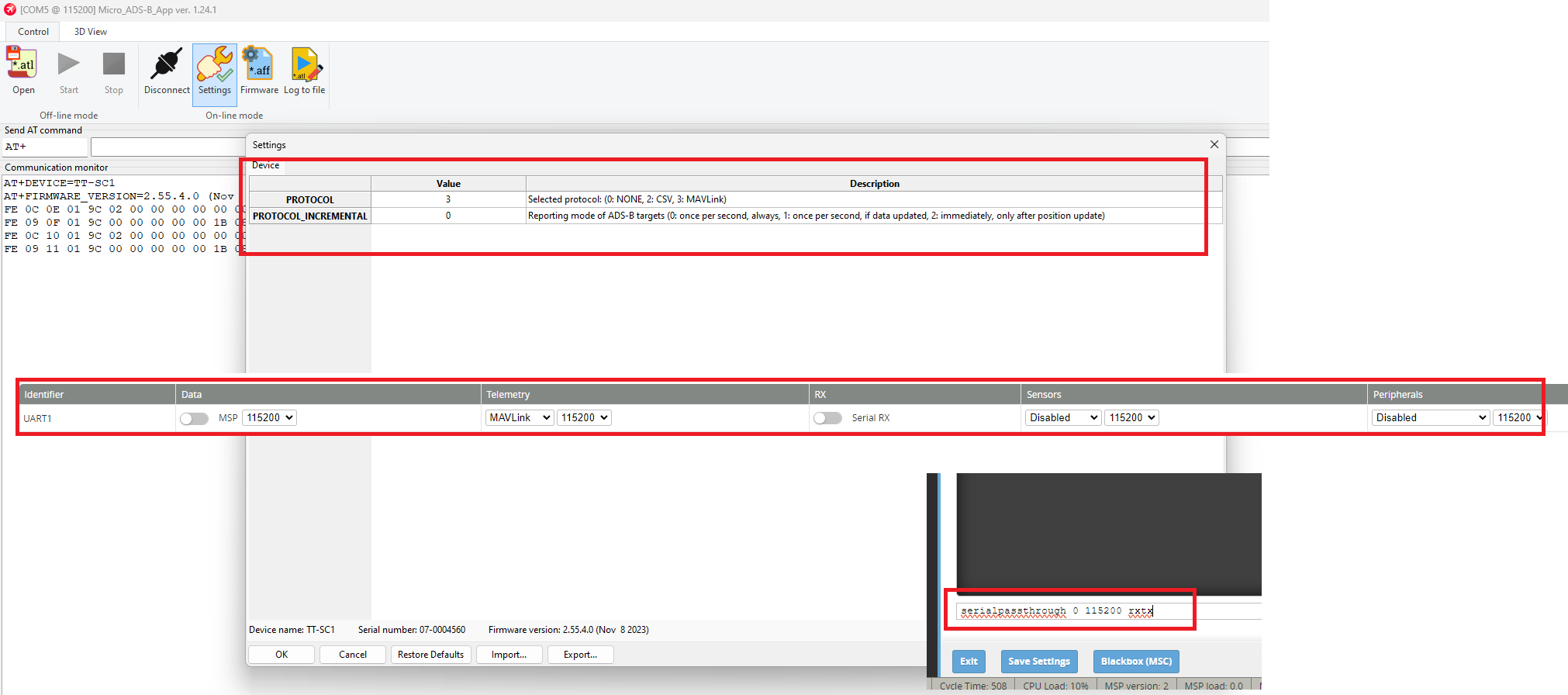
- Wire the receiver to a free UART on the flight controller. Connect both RX and TX — TX from the FC is needed for the serial passthrough used during receiver configuration, and some receivers also expect a heartbeat.
- In the INAV Configurator Ports tab, set the Telemetry column of that UART to MAVLink and the baud rate to 115200 (57600 for SoftRF).
- Save and reboot.
ADS-B uses the regular MAVLink telemetry port. No dedicated "ADS-B" port function exists — INAV simply picks the ADSB_VEHICLE (and HEARTBEAT with MAV_TYPE_ADSB) messages out of the incoming MAVLink stream.
3.2 Enable the OSD Elements
In the Configurator OSD tab, enable and position the ADSB Info and ADSB Warning elements (element IDs 151 and 150, see OSD elements). Both can also be enabled from the in-flight OSD menu (CMS).
Reserve two lines of space below the ADSB Warning element if you intend to use the extended style — the second line is drawn directly beneath the first.
Optionally pick the warning style and tune the warning / alert distances in the CLI (defaults shown):
set osd_adsb_warning_style = COMPACT
set osd_adsb_distance_warning = 20000
set osd_adsb_distance_alert = 3000
set osd_adsb_ignore_plane_above_me_limit = 0
set osd_adsb_calculation_use_cpa = OFF
save
See Settings for what each one does. Once everything is configured, confirm it on the bench as described in Verifying It Works.
3.3 Receiver-Specific Configuration
TT-SC1
-
Download the Micro ADS-B App (
Micro_ADSB_App-vX.XX.X_win_setup.zip) from aerobits.pl and install it. -
Connect the receiver to the FC (RX and TX) and configure the port as described above.
-
In the Configurator CLI, open a serial passthrough to the receiver. The port index is zero-based (UART1 = 0, UART2 = 1, …), so for UART1:
serialpassthrough 0 115200 rxtxThen close the Configurator so the COM port is released.
-
Open the Micro ADS-B App, connect to the same COM port at 115200 baud, go to Settings and set PROTOCOL to
3(MAVLink). -
Save the settings, power-cycle the FC and reconnect the Configurator normally.
ADSBee 1090
-
Connect to the ADSBee 1090 over USB and switch its communication UART to MAVLink 2 at 115200 baud:
AT+PROTOCOL=COMMS_UART,MAVLINK2AT+BAUDRATE=COMMS_UART,115200 -
It is recommended to turn off Wi-Fi to save power and reduce interference:
AT+ESP32_ENABLE=0 -
Save the settings:
AT+SETTINGS=SAVE -
Configure the INAV port as MAVLink at 115200 baud.
Refer to the ADSBee 1090 quick start for details on the AT command interface.
SoftRF
SoftRF speaks MAVLink version 1 only at 57600 baud, so the INAV MAVLink port must be switched to v1:
set mavlink_version = 1
save
mavlink_version = 1 applies to all MAVLink ports on the flight controller. Features that depend on MAVLink 2 (native mLRS messages, MSP-over-MAVLink tunnel, high latency mode and others — see MAVLink) will not be available while SoftRF is connected.
INAV provides only minimal support for SoftRF. It sends just the mandatory messages HEARTBEAT, SYSTEM_TIME and GPS_RAW_INT; SYS_STATUS, VFR_HUD and ATTITUDE are not supported on this link.
4. OSD Elements
ADSB Info
A compact status indicator. It always starts with the ADS-B symbol, followed by one of:
| Shown | Meaning |
|---|---|
- | No ADS-B device detected — no ADSB_VEHICLE or ADS-B HEARTBEAT message has been received since boot. Check wiring, port configuration and baud rate. |
G | No GPS fix, or fewer than 5 satellites. Aircraft cannot be evaluated until a position is available. |
H | IMU heading is not valid. Aircraft are tracked, but the direction arrows cannot be drawn. |
| number | Number of aircraft currently in the traffic list. |
ADSB Warning
Shows the single aircraft selected by the warning and alert logic. When no aircraft qualifies, the element is blank. When the selected aircraft triggers an alert, the whole element blinks.
The style is chosen with osd_adsb_warning_style:
COMPACT (default) — one line:
{ADS-B symbol} {distance to vehicle} {direction to vehicle} {altitude difference}
EXTENDED — two lines:
{ADS-B symbol} {distance to vehicle} {direction to vehicle} {altitude difference}
{emitter type}  {vehicle heading}  {vehicle ground speed}
Field details:
- Distance to vehicle — horizontal distance from your UAV, in your configured distance units.
- Direction to vehicle — a cardinal arrow pointing toward the aircraft, relative to your current flight direction (and corrected for a pan servo if one is configured). Drawn only when the IMU heading is valid.
- Altitude difference — aircraft altitude minus your current altitude. Positive means the aircraft is above you.
- Emitter type — the aircraft category reported by the aircraft itself, as a 6-character label (see below).
- Vehicle heading — an arrow showing the aircraft's course over ground, relative to your flight direction.
- Vehicle ground speed — in your configured speed units.
Emitter type labels:
| Label | Emitter type | Label | Emitter type |
|---|---|---|---|
NOINFO | No information | LTAIR | Lighter-than-air |
LIGHT | Light aircraft | PARACH | Parachute / skydiver |
SMALL | Small aircraft | ULTLIT | Ultralight |
LARGE | Large aircraft | UAV | Unmanned aerial vehicle |
HVLARG | High-vortex large | SPACE | Spacecraft |
HEAVY | Heavy aircraft | EMRSUR | Emergency surface vehicle |
HMANUV | Highly manoeuvrable | SERSUR | Service surface vehicle |
ROTORC | Rotorcraft (helicopter) | POBSTC | Point obstacle |
GLIDER | Glider | UNASGN / UNASG2 / UNASG3 | Unassigned |
5. Warning and Alert Logic
Two concentric zones around your UAV are defined by distance:
- Warning zone —
osd_adsb_distance_warning(default 20 km). Aircraft inside this zone can be shown in the ADSB Warning element, steady. - Alert zone —
osd_adsb_distance_alert(default 3 km). Aircraft inside this zone, or predicted to enter it, make the element blink.
Which aircraft is selected depends on osd_adsb_calculation_use_cpa. The Configurator GPS tab shows the current selection — red for alert, yellow for warning — see Verifying It Works.
Settings
| Setting | Default | Range | Description |
|---|---|---|---|
osd_adsb_distance_warning | 20000 | 1 – 64000 m | Radius of the warning zone. Aircraft farther than this are never shown in the warning element. |
osd_adsb_distance_alert | 3000 | 1 – 64000 m | Radius of the alert zone. The element blinks for aircraft inside it (or predicted to enter it with CPA on). |
osd_adsb_ignore_plane_above_me_limit | 0 | 0 – 64000 m | Ignore aircraft that are above you by more than this many metres. 0 disables the filter. Useful to suppress airliners at cruise altitude. |
osd_adsb_warning_style | COMPACT | COMPACT, EXTENDED | One-line or two-line ADSB Warning element. |
osd_adsb_calculation_use_cpa | OFF | OFF, ON | Use Closest Point of Approach prediction instead of instantaneous distance only. |
The vertical filter only ignores aircraft above you. Aircraft below your altitude are always considered, regardless of the limit.
Distance-Only Mode (CPA OFF)
With osd_adsb_calculation_use_cpa = OFF, only the current distance between each aircraft and your UAV is evaluated. The closest aircraft is always the one selected for display.
- If the closest aircraft is inside the warning zone, the ADSB Warning element is shown, steady.
- If it is inside the alert zone, the element blinks.
This gives a simple, predictable proximity warning based purely on real-time distance. An aircraft passing 4 km away at high speed on a collision course is treated the same as one loitering 4 km away.
Predictive Mode (CPA ON)
With osd_adsb_calculation_use_cpa = ON, INAV additionally computes the Closest Point of Approach (CPA) for every tracked aircraft from its reported course and ground speed: how close it will get to your UAV if both keep their current track, and how many seconds until that happens. The selection then works as follows:
- An aircraft is already inside the alert zone. The closest aircraft to the UAV is selected and the element blinks.
- Aircraft are in the warning zone, none predicted to enter the alert zone. Their CPA distance is larger than
osd_adsb_distance_alert, so the closest aircraft is selected and the element is shown steady. - Aircraft are in the warning zone, one predicted to enter the alert zone. That aircraft is selected, even if another aircraft is currently closer, and the element blinks.
- Multiple aircraft predicted to enter the alert zone. The one that will reach the alert zone first is selected and the element blinks. If two would arrive at the same time, the closer one wins.
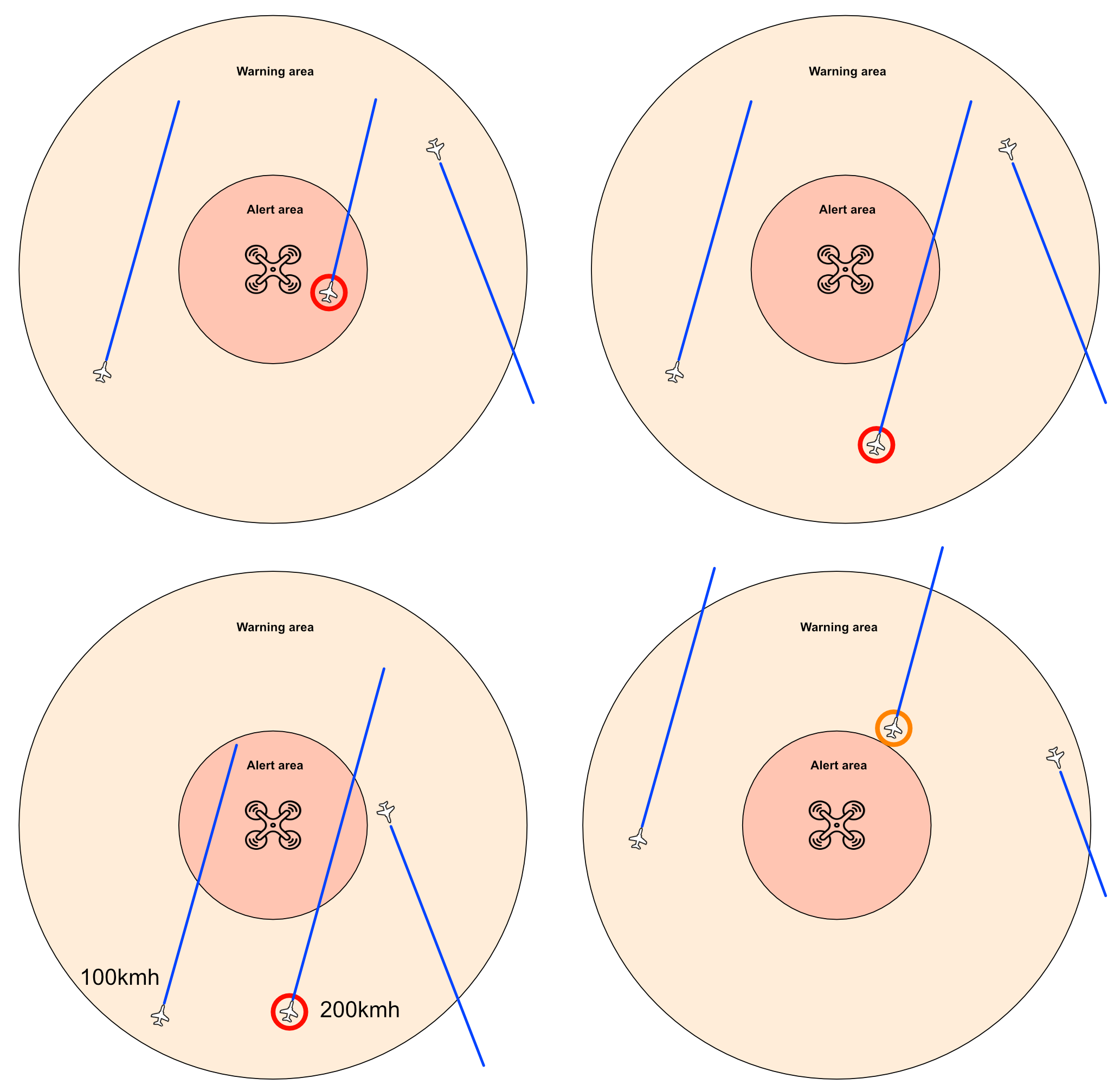
In the figure above, red circles mark an aircraft that makes the element blink (alert), while the orange circle marks a plain warning (steady).
CPA prediction assumes both your UAV and the aircraft keep a straight track at constant speed. Your own motion is taken into account at the moment of calculation, but a turn by either party changes the prediction on the next update. Treat the blinking element as "worth looking at now", not as a guaranteed conflict.
6. Verifying It Works
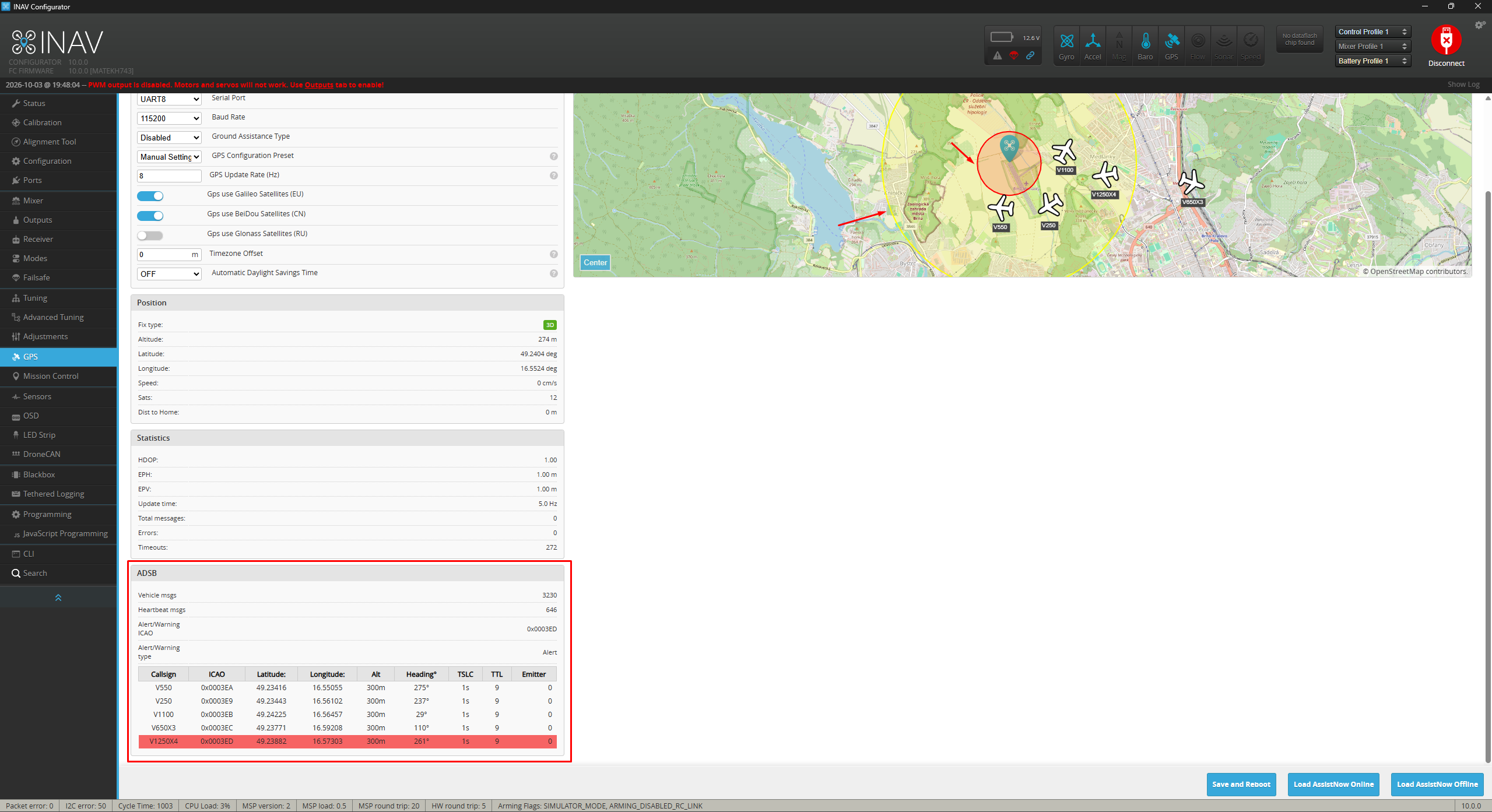
Recent versions of INAV Configurator show the ADS-B subsystem live in the GPS tab: an ADSB panel at the bottom of the left column, and the received traffic on the map. Use it to confirm the whole chain works on the bench before you fly.
What to check, in order:
- Heartbeat msgs increases by one every second. A correctly wired and configured receiver sends a heartbeat each second even when no aircraft are in range. If the counter stays at 0, the receiver is not talking to INAV — check RX/TX wiring, the port function (Telemetry → MAVLink) and the baud rate.
- Vehicle msgs increases when aircraft are in range. Every received
ADSB_VEHICLEmessage with a valid position and altitude increments this counter. Indoors or with a poor antenna it may stay at 0 while heartbeats keep arriving — that is a reception problem, not a wiring problem. - The table lists the tracked aircraft — callsign, ICAO address, position, altitude, heading, TSLC (seconds since the receiver last heard the aircraft), TTL (seconds until INAV drops it from the list if no new message arrives) and emitter type. Row colour shows what the warning logic selected:
- Red — the aircraft is currently selected as an alert. The OSD ADSB Warning element blinks.
- Yellow — the aircraft is selected as a warning. The OSD element is shown steady.
- The Alert/Warning ICAO and Alert/Warning type fields above the table show the same selection.
- The map shows the contacts as aircraft icons with their callsign, together with two circles around your own position: yellow for
osd_adsb_distance_warningand red forosd_adsb_distance_alert. The circles are drawn only when a GPS fix is present — without a position INAV cannot place them, and cannot evaluate distances either (ADSB Info showsG).
This panel is the quickest way to tell the three failure modes apart: no heartbeats means a port or wiring problem, heartbeats without vehicles means no reception, and vehicles in the table but nothing in the OSD means the OSD elements or the warning distances need attention.
Troubleshooting
ADSB Info shows -:
- No MAVLink traffic has arrived from the receiver. Check that RX/TX are not swapped, the UART is set to Telemetry → MAVLink in the Ports tab, and the baud rate matches the receiver (115200 for TT-SC1 and ADSBee, 57600 for SoftRF). In the Configurator GPS tab, Heartbeat msgs should increase every second — see Verifying It Works.
- Confirm the receiver is actually configured to output MAVLink (TT-SC1
PROTOCOL = 3, ADSBeeAT+PROTOCOL=COMMS_UART,MAVLINK2). - SoftRF: make sure
mavlink_version = 1is set. - Note that the receiver may send heartbeats even with no aircraft in range —
-means nothing was received, not merely "no aircraft".
ADSB Info shows G:
- Wait for a 3D GPS fix with at least 5 satellites. Aircraft are received but cannot be positioned relative to you until then.
ADSB Info shows H:
- The IMU heading is invalid. This usually clears once the aircraft has moved and the heading estimate converged, or when the compass is calibrated and healthy. See Compass.
ADSB Info shows a count but ADSB Warning stays blank:
- All tracked aircraft are outside the warning zone. Compare the aircraft positions with the yellow warning circle on the Configurator GPS tab map, or temporarily increase
osd_adsb_distance_warningto verify reception, then set it back to a useful value. - An aircraft above you may be filtered out by
osd_adsb_ignore_plane_above_me_limit.
The element shows only one line in EXTENDED style:
- Make sure the row below the element is free in your OSD layout — the second line is written directly beneath the first and may be covered by other elements.
No direction arrows are drawn:
- Arrows require a valid IMU heading. Distance and altitude difference are still shown.
Related Documentation
- MAVLink — port configuration,
mavlink_version, and the full list of handled messages includingADSB_VEHICLE. - OSD — enabling and positioning the ADSB Info and ADSB Warning elements.
- In-flight OSD menu (CMS) — enabling the ADS-B elements from the stick menu.
- GPS fix estimation — an estimated fix is sufficient for ADS-B distance calculations.
- ADSB.md — the firmware documentation this page is based on.
- Settings:
osd_adsb_distance_warning,osd_adsb_distance_alert,osd_adsb_ignore_plane_above_me_limit,osd_adsb_warning_style,osd_adsb_calculation_use_cpa— Settings reference.